
Settings
In simple words
Settings is part of Projects. Project rules, roles and permissions. This guide takes you through it in 5 short steps.
Where it fits in your work — Bill. A completed milestone can raise the invoice in Finance.
Before you start
- You need to be signed in to your company's workspace. Projects appears in the Workspace dashboard and in the left menu when your role includes it.
- What you can see and change depends on your role. If a menu item or button is missing, ask your workspace owner to give your role access in Workspace → Users.
- Settings belongs to Insight & control in Projects. Project rules, roles and permissions.
Step by step
- 1
Step 1
Open Projects
Sign in and open the Projects panel from your Workspace dashboard (or sign in to it directly). You see only what your role allows.
- 2
Step 2
Open “Settings”
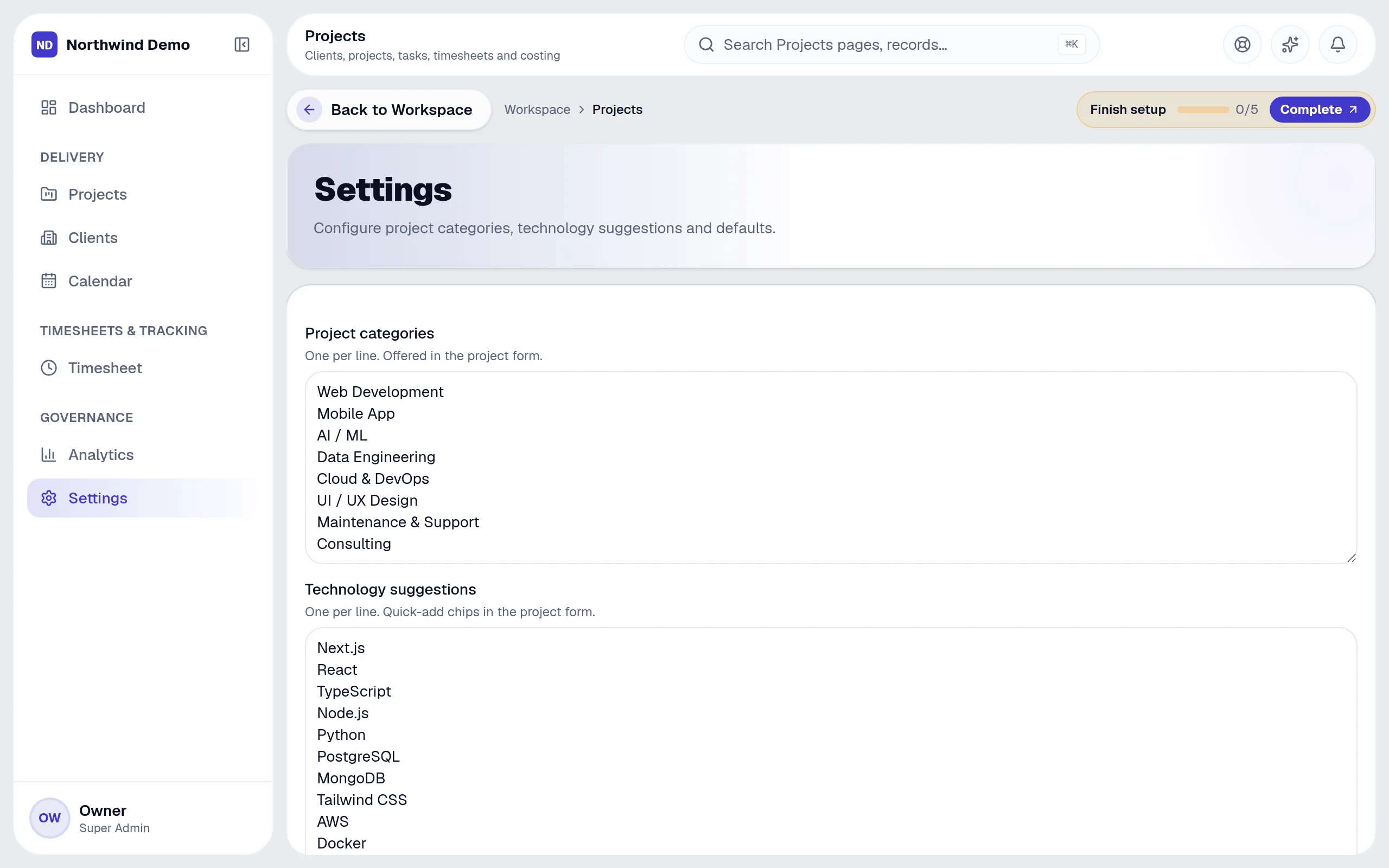
In the left menu, click “Settings”. The “Settings” screen opens.
- 3
Step 3
Narrow the list
Use these filters to see only what you want:
- Project categories
- Technology suggestions
- Default currency for new projects
- 4
Step 4
Other actions on this screen
You will also see these buttons:
- Save settings
- 5
Step 5
Done
Project rules, roles and permissions.
Tips
- You can use more than one filter together (Project categories, Technology suggestions, Default currency for new projects) to see exactly the records you want.
- If you make a mistake, open the record again and correct it. Changes are recorded against your name so your team can see who did what.
Quick recap
Open Projects → Open “Settings” → Narrow the list → Other actions on this screen → Done
What it connects to
CRM & Sales
Projects start from clients won in the CRM.
Finance
Milestone billing and project profitability.
Team Chat
A discussion channel for each project.
Client & Student Portal
Clients see progress in their portal.
What you will see on this screen
These are the parts of the Settings screen, exactly as they appear in the product.
Search and filters
- Project categories
- Technology suggestions
- Default currency for new projects
Buttons
- Save settings
Why use Projects
Projects replaces project management software, on the same login and the same data.
- Clear ownership of every task and deadline
- Know a project's profitability before it ends
- Time, cost and milestones in one place
- Milestones can raise the invoice automatically
Who uses Projects
Project managers
Plan, assign, track and bill delivery.
Team members
Work from their own task list and log time.
Account managers
Keep the client relationship and project history together.
Leadership
See portfolio health, utilisation and profitability.
More in Insight & control
FAQs
Common questions.
About Settings and Projects.
I cannot see Settings in the menu.
Your role may not include it. Ask your workspace owner to open Workspace → Users and give your role access to Projects.
Can I do this on my phone?
Yes. SelfRun AI works in the browser on any device and can be installed as an app on Android, iOS and desktop, with the same screens and the same data.
Does this cost extra?
No. Settings comes with the Projects panel, and every panel is included in every plan.
What is SelfRun AI?
SelfRun AI is a cloud platform that brings your sales, HR, finance, projects, procurement, training, documents, website and team communication into one system, with AI and workflow automation running through all of it.
Do I need to use every module?
No. Each plan includes a set of modules and you switch on only what you need during setup. You can turn modules on or off later from your workspace settings.
Is there a free plan?
Yes. The Free plan is free forever for one person and includes every panel and every feature — no card needed. Paid plans add more people and bigger storage, AI, email and voice allowances.