
Getting started · 5 min read

Getting started: from registration to your first week

The shortest path from a new account to a workspace your team is using.
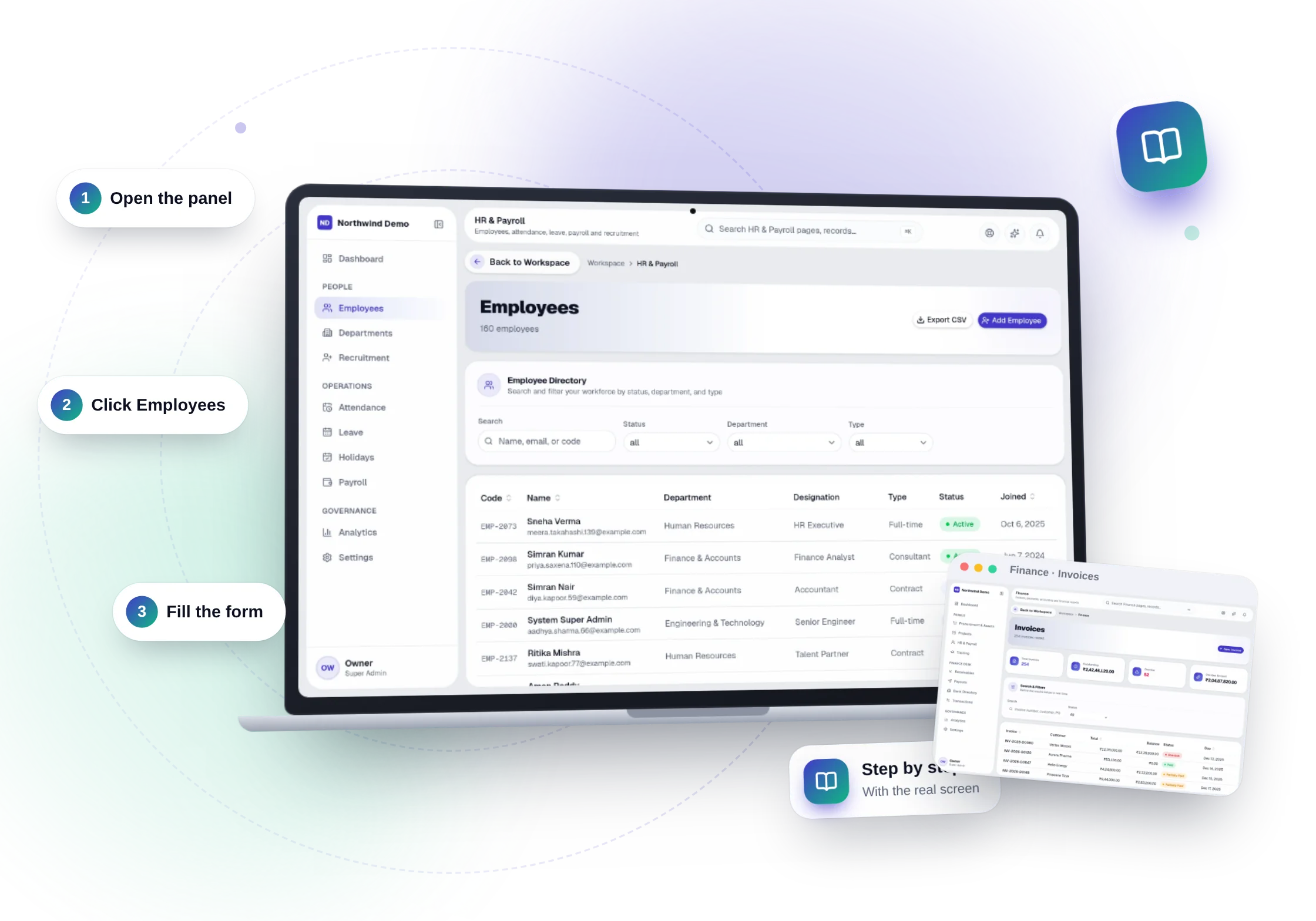
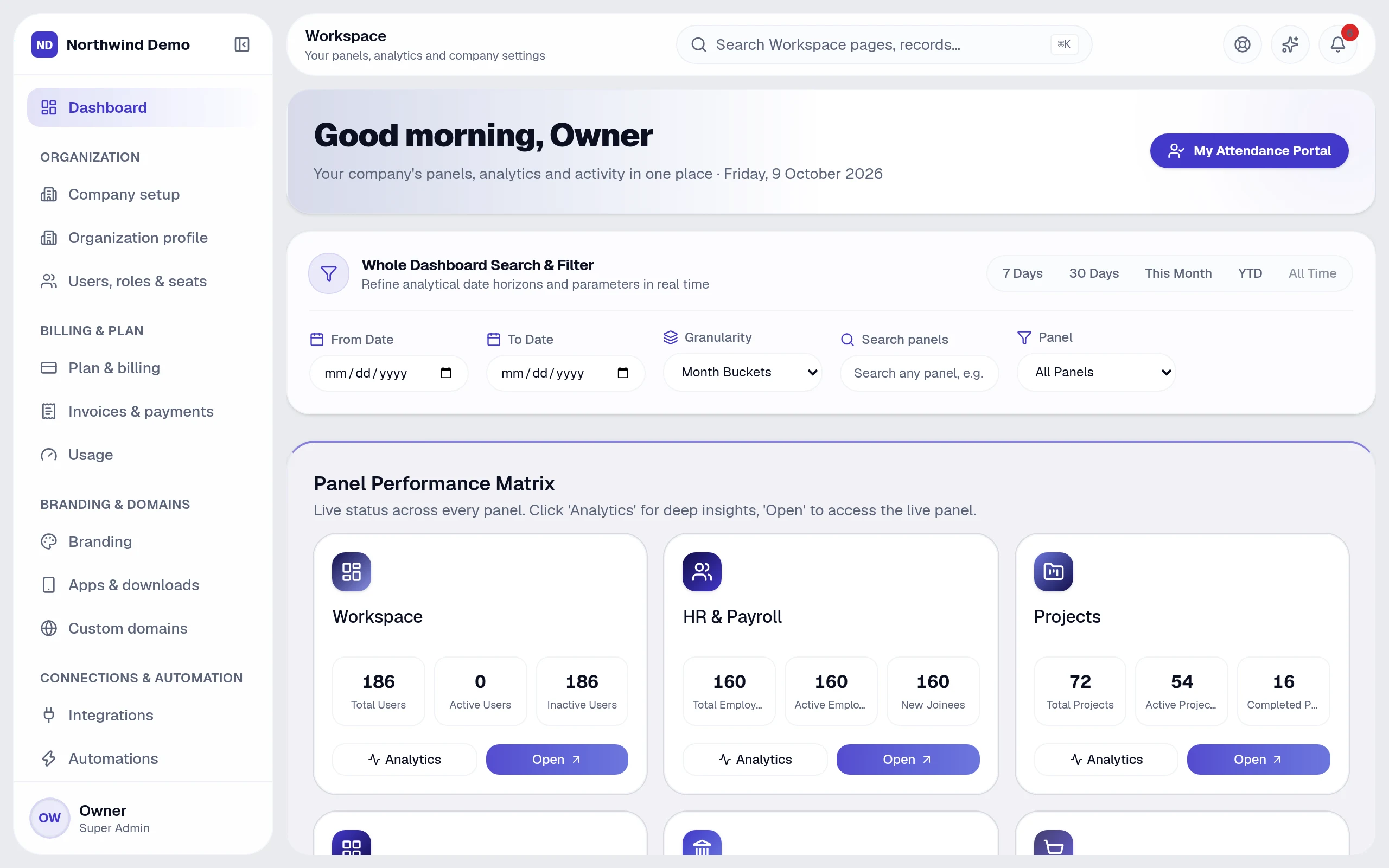
Getting started: from registration to your first week — the real product, on its own artwork
Getting started: from registration to your first week — real screen of the product on a laptop

1Create your account

Register with your work email and choose a plan. We email a verification link; open it to activate your account. Start on the free-forever plan and upgrade when your team grows.

2Complete the guided setup

The first time you sign in, setup asks for your business details, creates your departments from a template that fits your industry, lets you invite your team and lets you choose which modules to switch on.

You can skip setup and return to it later — a banner keeps it one click away until it is done.

3Invite your team and set roles

Invite people by email and give each one a role. Roles control which modules a person can open and which actions they may take. You can fine-tune permissions per person at any time.

4Bring in your data

Import leads, clients or employees from CSV in Settings → Import. The importer validates every row and lists exactly what to fix before anything is saved.

5Your first week

Day one: invite the team and import contacts. Day two: set up one automation, such as notifying the owner of every new lead. Day three: publish your website theme. By the end of the week your team is working inside the platform and the dashboard is filling with live numbers.

Put this guide to work — free.

Every panel and every feature is included in every plan, starting free forever.

Free forever for one personNo card neededEvery panel and feature included

FAQs

Questions, answered.

Still deciding? These are the things people ask before they start.

Will my team and clients see SelfRun's brand?

No. Your logo, name, colours, domain, emails and apps carry your company's identity. SelfRun stays in the background.

Can I have my own mobile and desktop apps?

Yes. The platform generates your installable app, Android and iOS apps and Windows, macOS and Linux desktop apps from your branding. For the stores you sign the Android and iOS projects with your own developer accounts.

Can I use more than one website theme?

Yes. The theme library lets you preview, activate and customise themes — colours, fonts and components — and switch whenever you like.

Do push notifications come from my company?

Yes. Push notifications reach your team and your website visitors in your name, on the devices where they have allowed them.

What can I ask the AI?

Anything about your business data in plain language — for example overdue invoices, leads by source, who is on leave or which projects are late. It answers with text, a table or a chart and shows how it calculated the answer.