
In simple words
Team channels is part of Team Chat. Channels for every team. This guide takes you through it in 6 short steps.
Where it fits in your work — Talk. Direct messages, groups and team channels with files.
Before you start
- You need to be signed in to your company's workspace. Team Chat appears in the Workspace dashboard and in the left menu when your role includes it.
- What you can see and change depends on your role. If a menu item or button is missing, ask your workspace owner to give your role access in Workspace → Users.
- Team channels belongs to Conversations in Team Chat. Channels for every team.
Step by step
- 1
Step 1
Open Team Chat
Sign in and open the Team Chat panel from your Workspace dashboard (or sign in to it directly). You see only what your role allows.
- 2
Step 2
Open “Team Channels”
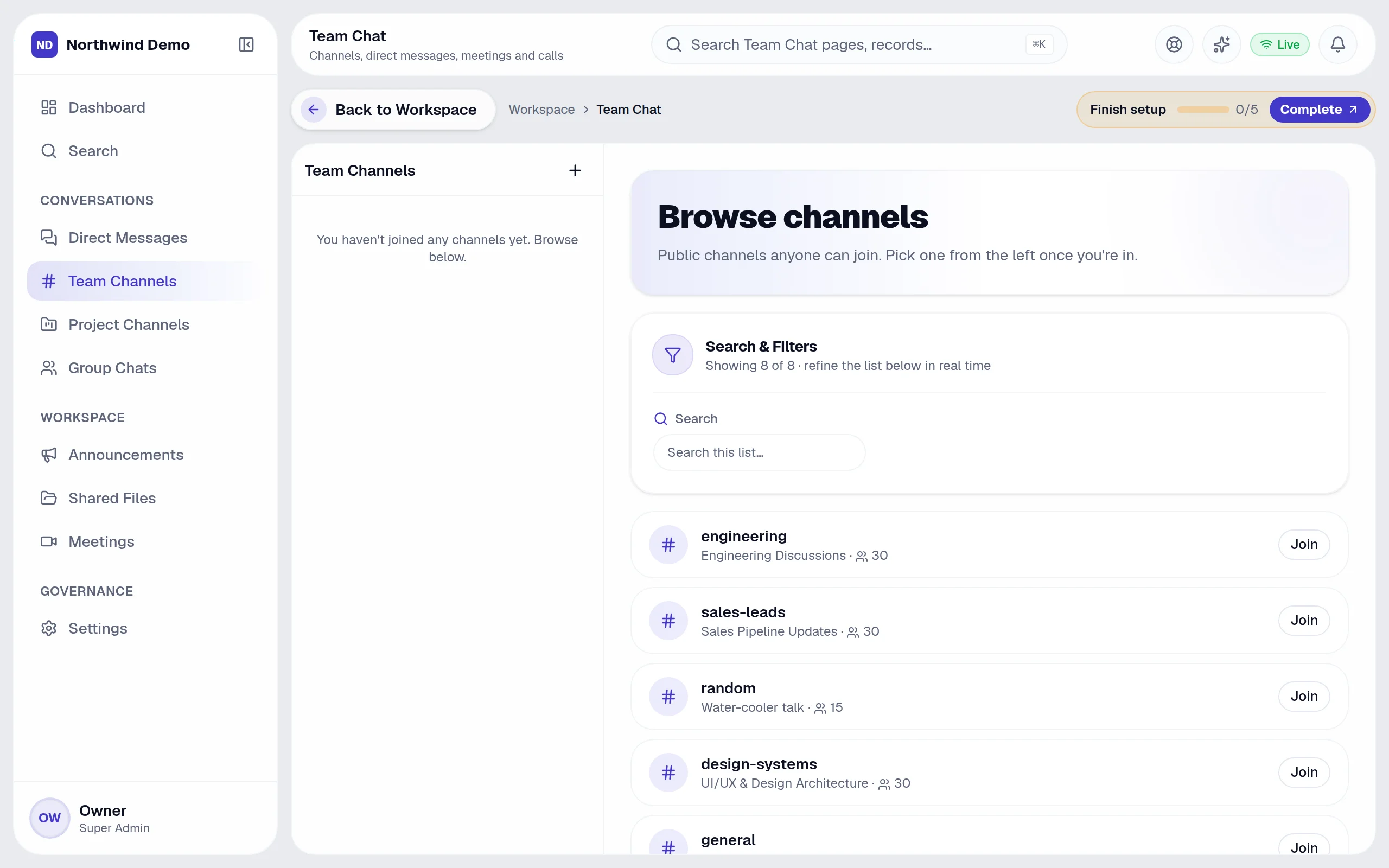
In the left menu, click “Team Channels”. The “Browse channels” screen opens.
- 3
Step 3
Find what you need
Type in the search box (“Search this list…”) to find a record quickly.
- 4
Step 4
Narrow the list
Use these filters to see only what you want:
- Search
- 5
Step 5
Other actions on this screen
You will also see these buttons:
- Join
- 6
Step 6
Done
Channels for every team.
Tips
- The search box accepts: Search this list…. Start typing and the list narrows down.
- If you make a mistake, open the record again and correct it. Changes are recorded against your name so your team can see who did what.
Quick recap
Open Team Chat → Open “Team Channels” → Find what you need → Narrow the list → Other actions on this screen → Done
What it connects to
Projects
A channel for every project.
Workspace
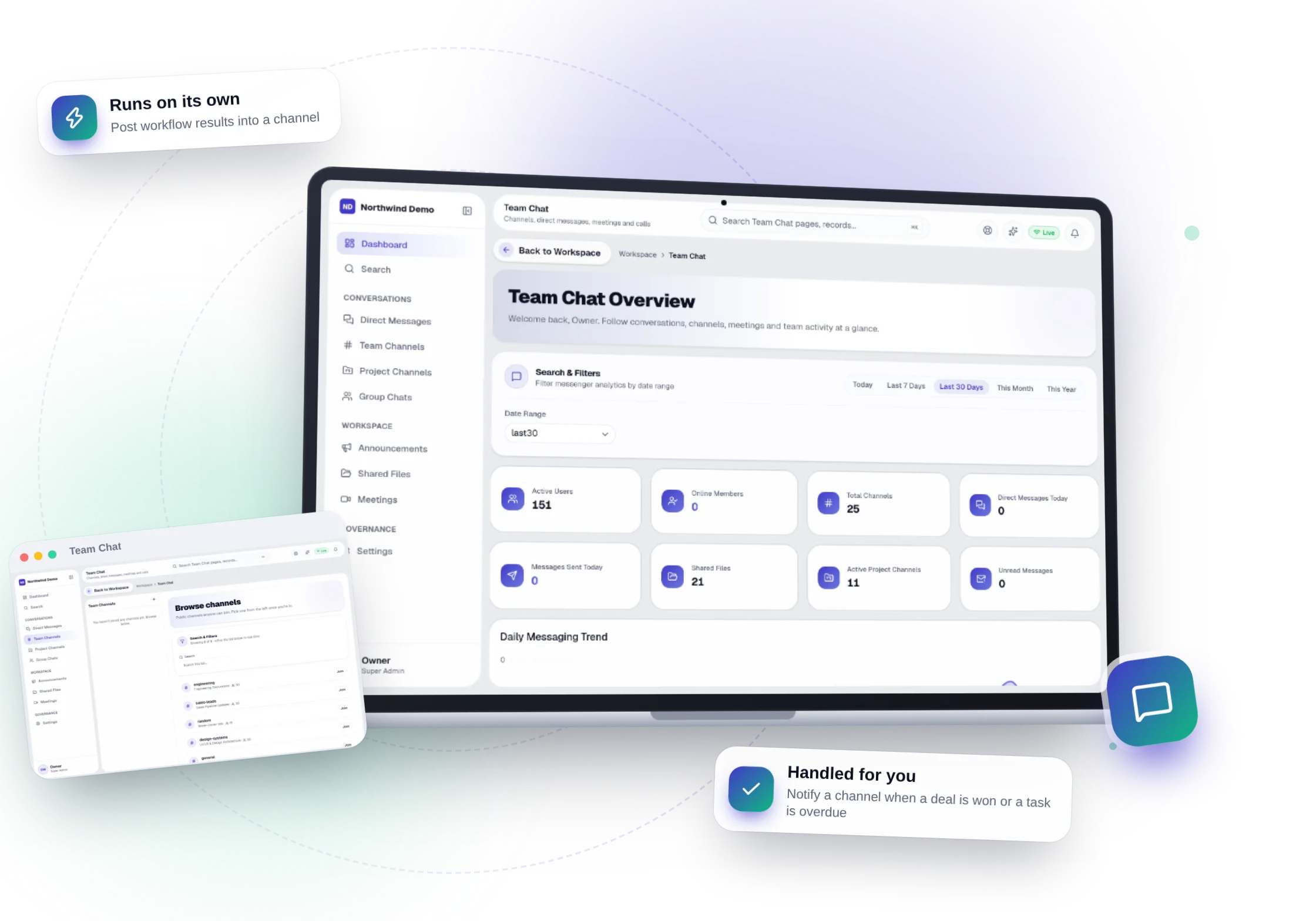
Workflow results can post into a channel.
HR & Payroll
Company announcements for all staff.
What you will see on this screen
These are the parts of the Browse channels screen, exactly as they appear in the product.
Search and filters
- Search this list…
- Search
Buttons
- Join
Sections
- Search & Filters
Why use Team Chat
Team Chat replaces team chat & meeting software, on the same login and the same data.
- Conversations stay next to the project or record they are about
- Company announcements with proof they were read
- No separate chat subscription or login
- Workflow results can post straight into a channel
Who uses Team Chat
Every employee
Chat, share files and join meetings.
Team leads
Run team and project channels.
Management
Post announcements and see that they were read.
Administrators
Set roles and retention.
More in Conversations
FAQs
Common questions.
About Team channels and Team Chat.
I cannot see Team channels in the menu.
Your role may not include it. Ask your workspace owner to open Workspace → Users and give your role access to Team Chat.
Can I do this on my phone?
Yes. SelfRun AI works in the browser on any device and can be installed as an app on Android, iOS and desktop, with the same screens and the same data.
Does this cost extra?
No. Team channels comes with the Team Chat panel, and every panel is included in every plan.
What is SelfRun AI?
SelfRun AI is a cloud platform that brings your sales, HR, finance, projects, procurement, training, documents, website and team communication into one system, with AI and workflow automation running through all of it.
Do I need to use every module?
No. Each plan includes a set of modules and you switch on only what you need during setup. You can turn modules on or off later from your workspace settings.
Is there a free plan?
Yes. The Free plan is free forever for one person and includes every panel and every feature — no card needed. Paid plans add more people and bigger storage, AI, email and voice allowances.